To view **domain statistics** (including disk usage, bandwidth, traffic reports, logs, and visitor analytics) in DirectAdmin, follow these steps as a user-level account:
1. Log in to your DirectAdmin control panel (usually at `https://yourdomain.com:2222`).
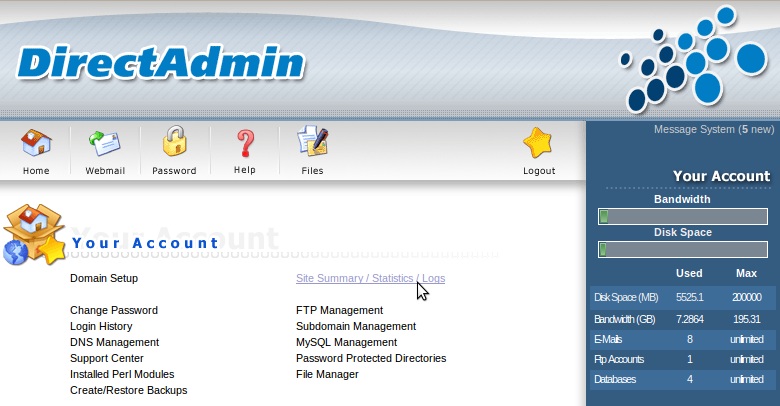
2. Navigate to **Site Summary / Statistics / Logs** (often under the "Your Account" or "System Info & Files" section, depending on the skin—e.g., Enhanced or Evolution).
This is the main statistics overview page, showing account totals and a per-domain breakdown table.
### Key Sections
- **Overall Account Summary**: Total disk space and bandwidth usage (includes emails, databases, etc.).
- **Domain Statistics Table**: Per-domain disk usage, bandwidth, log sizes, etc.
- **Usage/Error Logs**: View raw logs or archived files for each domain.
- **Web Traffic Statistics**: Click on a domain's stats link to open detailed reports via Webalizer (default) or AWStats (if enabled by admin).
### Sample Webalizer Reports
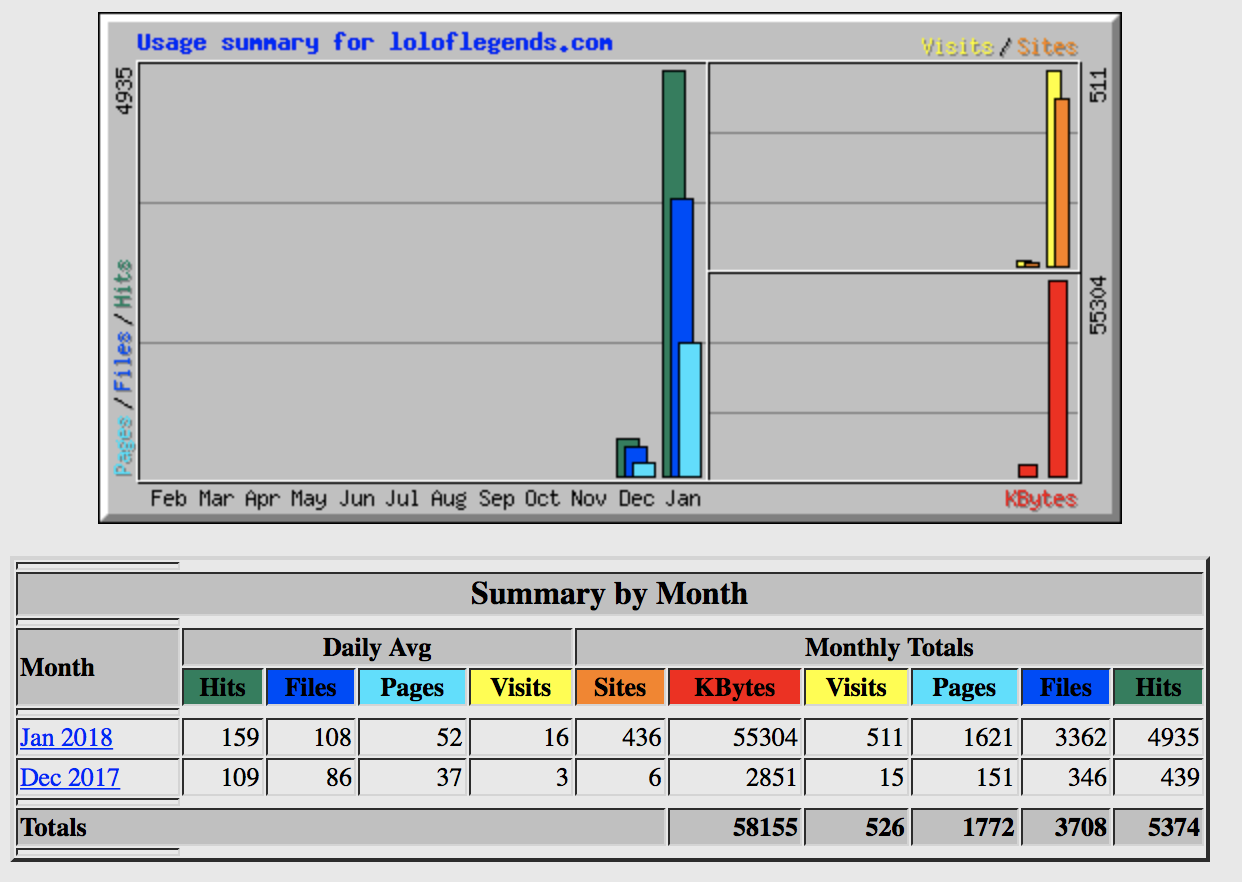
Webalizer provides graphical monthly summaries with pie charts, bar graphs for hits/visits/pages, top referrers, countries, user agents, entry/exit pages, and more.
### Sample AWStats Reports
If your server uses AWStats (more detailed alternative), reports include interactive charts, hourly/daily/monthly breakdowns, search engine keywords, HTTP codes, OS/browser stats, and advanced filtering.
![3 Bước] Enable AWStats on DirectAdmin](https://azdigi.com/blog/wp-content/uploads/2021/02/Screen-Shot-2021-02-23-at-1.05.23-PM.png)
These are based on common DirectAdmin setups (screenshots from various hosts and documentation). Actual appearance may vary slightly by skin (Enhanced vs. Evolution) or customizations. Stats are updated daily via cron jobs. For real-time or more advanced analytics, integrate tools like Google Analytics.